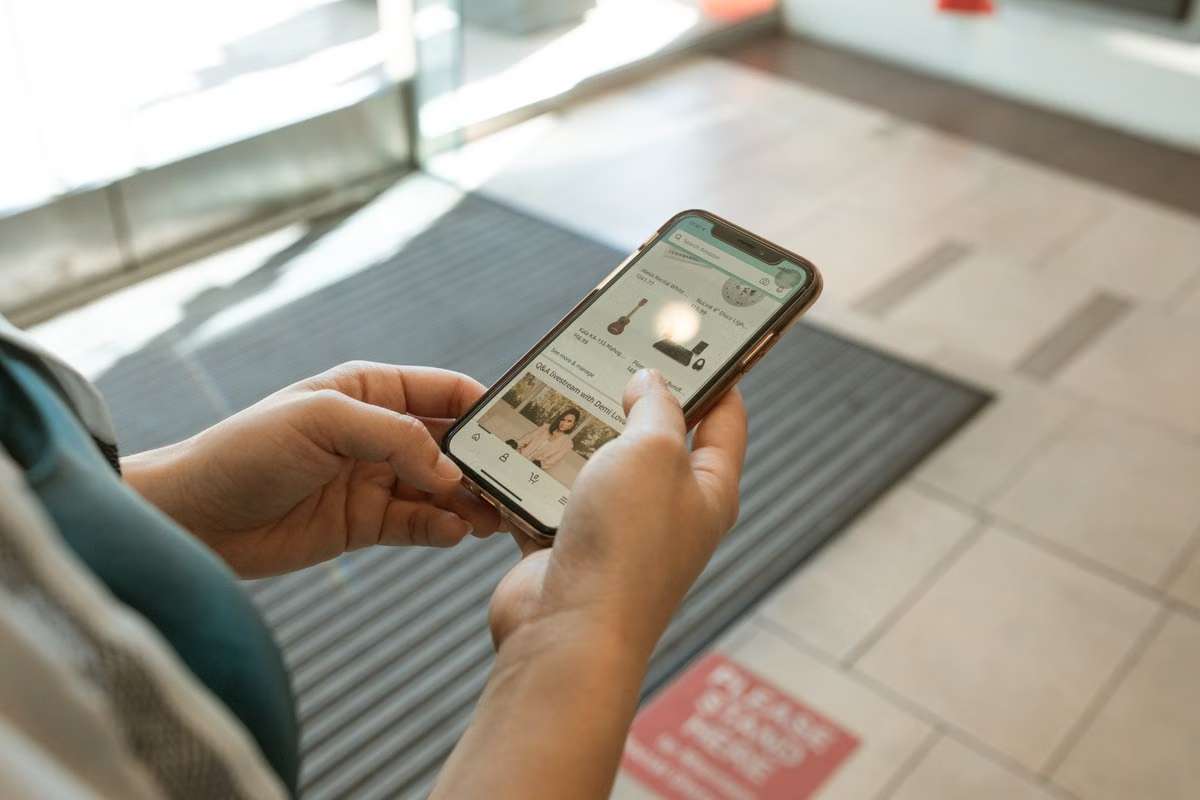
Apple’s Xcode guidance distinguishes running an app on a simulated device from running it on a physical device, so simulator success and real-device acceptance are separate evidence. For an iPhone Duo release, prioritize interface adaptation, critical app journeys, and device-dependent features that Apple has actually confirmed; use the simulator for early screening, then verify high-risk behavior on the target hardware. Do not set a real-device testing budget until device access, test scope, duration, and execution costs are known. (Apple’s guidance on simulated and physical devices)
This guide is for iOS developers deciding what to retest, QA staff defining release evidence, and project leads estimating device and execution resources. It does not assume that the iPhone Duo name, launch status, or any unconfirmed specification establishes a test condition.
Confirm the target before defining the regression scope
Treat “iPhone Duo” as the target named in the release plan, not as proof of a specific screen, sensor, or software configuration. Apple’s Newsroom product announcement is the appropriate source to check for official product information. Before writing device-specific acceptance criteria, verify what that page confirms and record the exact model and software combination available to the team.
Keep rumor or expectation out of pass/fail criteria. If a rumored display format or hardware capability might affect the app, list it as a pending test hypothesis. Promote it to a required test only after an authoritative source confirms the relevant detail and the team can access a matching test environment.
Use the app’s own risk history to decide what earns attention. A defect that blocks account access, loses a submitted form, or leaves a purchase in an uncertain state deserves more attention than a cosmetic difference on a rarely used screen. Previous layout regressions, crash reports, and support cases can also identify screens where a small environmental change has caused a disproportionate release risk.
Sort work into three practical groups:
- Must retest: critical user journeys, screens with past compatibility defects, and any behavior directly affected by a confirmed device difference.
- Retest when relevant: permissions, notifications, background transitions, and device features that the app actually uses.
- Defer or exclude: features absent from the app, unconfirmed hardware assumptions, and low-risk visual details that do not affect supported use.
This is a risk ranking, not a claim about the iPhone Duo’s specifications. The test plan should state why each item is included or deferred.
Check layout behavior on the app’s supported screens
Start with the screens that users need to complete the core journey: sign-in, the main task, and the result or confirmation state. Check whether content remains readable and controls remain reachable when the available layout changes. The app’s supported interface modes and existing design rules determine which variations belong in scope; do not invent a new screen category based on an unverified device rumor.
Pay particular attention to safe areas. Apple’s UIKit safe-area guidance explains how content should be positioned relative to system interface regions. Review whether headers, buttons, lists, and fixed overlays remain clear of those regions. Also inspect constraints and resizing behavior using Apple’s UIKit view layout documentation. A screen can appear acceptable at first glance while a constrained footer or long form becomes unusable after content changes.
Text and keyboard behavior need functional checks, not just screenshots. Enter long names, localized or unusually formatted values where the app accepts them, and text that approaches field limits. Confirm that labels do not overlap, important content does not disappear behind the keyboard, and the user can reach the next action without losing entered data. Include accessibility text sizes and interface modes only if the app supports them and they are part of the release contract.
For each important screen, capture the simulator configuration and the result. When the target device becomes available, repeat the checks that depend on its confirmed display conditions. Keep those hardware observations separate from simulator screenshots; the evidence should show where each result came from.
Verify complete journeys and device-dependent behavior
Visual inspection cannot establish whether a transaction or workflow survives interruptions. Run the app’s real critical journeys from start to finish, using the app’s available test accounts and approved test services. Where the product includes sign-in, verify both a normal session and a recoverable failure. Where it includes payment, submission, or another irreversible action, confirm how the app reports success, failure, cancellation, and uncertain network outcomes.
Then exercise state transitions that commonly expose regressions:
- Send the app to the background and return to the same task.
- Deny, grant, or later change a permission that the app requests.
- Open a notification and verify that it reaches the intended app state.
- Interrupt a form or transaction and check whether recovery preserves or safely discards data.
- Reproduce a failure and verify that retry behavior does not duplicate an action.
Include camera checks only if the app uses camera capture and the target device’s relevant camera details are confirmed. Apple’s AVFoundation capture-device documentation can help the team identify the APIs and device characteristics its implementation relies on. For biometric authentication, include a hardware test only when the app uses that flow and the confirmed device supports the required capability; Apple describes the relevant app-side interface in its Local Authentication documentation.
For each device-dependent test, record the precondition, action, expected result, observed result, and environment. If the capability cannot be verified on available hardware, mark it as untested and state what evidence is missing. A passing simulator run is not a substitute for a physical capability check.
Keep the product name and rumored specifications out of acceptance criteria until an official source confirms them. A test can be planned as a hypothesis, but it cannot pass or fail against a condition that has not been established.
Divide work between simulator and physical hardware
Use the simulator to find issues early and make repeatable checks easier. It is suitable for initial layout review, app-flow regression, and screening software environments supported by the current development tools. Apple’s Xcode system requirements should be checked when choosing the development environment; do not assume an older Mac or toolchain supports the required combination.
Reserve the target physical device for questions that depend on actual hardware or real interaction. Verify touch targets and gestures, device-dependent capabilities, and any behavior whose outcome could differ from a simulated environment. What the simulator can represent depends on the selected device profile and the current tools. If a feature or environment cannot be reproduced, document that limitation rather than describing the check as complete.
A workable handoff from simulator to hardware looks like this:
- Build and run the app in the supported simulator environment.
- Check priority screens, content resizing, and the main app journeys.
- Log defects with the environment and evidence needed to reproduce them.
- Apply fixes and repeat the affected simulator checks.
- Run high-risk and device-dependent cases on the target physical device when available.
- Record simulator passes, physical-device results, and unverified items separately.
This sequence lets the team find inexpensive, repeatable defects before spending scarce target-device time. It does not remove the need for physical verification where the release depends on touch behavior, hardware capabilities, or actual device performance.
Use a conditional test plan before spending on hardware
The following decisions prevent the test plan from treating every hypothetical feature as mandatory:
- If Apple confirms a device characteristic that affects an app screen, then add a targeted layout check on a matching environment; otherwise keep that characteristic out of pass/fail criteria.
- If the app’s critical journey works in the simulator and has no hardware dependency, then use the simulator for early regression and select representative physical-device checks based on release risk; otherwise identify the missing physical condition before sign-off.
- If the app uses camera, biometric authentication, or another device capability and the target device is confirmed to support the required behavior, then test that feature on matching hardware; otherwise mark it as not verified and record the dependency.
- If the team can access the target device for the required period, then schedule hardware cases around that window; otherwise seek a verified access option or reduce the release claim to the cases actually tested.
- If a test item has no user-impacting failure mode and no relevant defect history, then consider deferring it with a written rationale; otherwise keep it in the release scope.
The decision should follow app risk and confirmed device information, not a guessed specification or an assumed test budget.
Estimate real-device testing cost from actual inputs
There is no reliable single price for iPhone Duo testing without verified device availability and a defined scope. Build the estimate from actual unit prices and actual usage. For each cost line, record its source, unit, expected usage, and whether the figure is confirmed or still requires a quote. If a value is unknown, leave it as a quote-required item rather than filling in an illustrative amount.
| Cost item | What to establish | Estimate method |
|---|---|---|
| Target device access | Whether the required model is available, how it is obtained, and the access terms | Verified device charge × actual access period |
| Test duration | The time needed for setup, execution, defect reproduction, and retesting | Actual billable time or agreed access window |
| Coverage scope | App flows, supported environments, confirmed device differences, and required evidence | Planned test cases × actual execution effort |
| QA and development effort | Who prepares cases, investigates failures, implements fixes, and signs off | Actual role rates × estimated effort |
| Development environment | Whether the required Xcode and macOS combination is available to the team | Verified environment price × actual usage |
| Delivery or setup | Any applicable onboarding, remote access, or environment preparation charge | Include only a published or quoted amount |
The estimate must distinguish device access from Mac development access. A Mac environment may support building and running an iOS app, but it does not by itself prove access to the target physical iPhone. Verify what a provider actually supplies before treating a rental as hardware-test coverage.
For any Zutcloud option, use only the current information shown on the Mac mini pricing page. If a relevant configuration, availability condition, rental period, or charge is not clearly stated there, request confirmation through the help center rather than assuming it. The cost framework below is not a quotation.
Close the release plan with evidence and budget checks
Before approval, keep the test scope and estimate on the same worksheet. That makes it easier to see whether a budget covers the required evidence or only the development environment.
| Release record | What to check before sign-off |
|---|---|
| Simulator evidence | Supported environment, build tested, priority screens, completed journeys, and unresolved defects |
| Physical-device evidence | Exact device and software environment, tested hardware-dependent cases, observed results, and retest status |
| Unverified items | Missing device access, unsupported conditions, unconfirmed specifications, and the owner of each follow-up |
| Budget basis | Source for each actual rate, expected usage, excluded items, and any quote still pending |
| Release decision | Remaining user risk, accepted limitations, and who approved those limitations |
Use these checks to adjust the plan:
- If a core user journey cannot be completed on the target hardware, do not treat simulator success as release acceptance.
- If a device-specific test is still waiting on official confirmation, keep it as a documented hypothesis rather than an asserted requirement.
- If the hardware window is limited, reserve it for critical journeys and confirmed device-dependent behavior; leave repeatable layout screening on the simulator.
- If the estimate contains unverified prices or availability, keep the budget provisional until the relevant provider confirms the terms.
A local Mac avoids rental charges but requires the team to provide and maintain its own environment. A generic remote Mac can help with builds, but it may not include the exact target iPhone, and networked access can add setup and coordination overhead. Renting a Mac through Zutcloud can be a better fit when the team needs temporary Mac capacity for iOS build or simulator work; it should not be counted as physical-device testing unless target iPhone access is separately confirmed. Check Zutcloud’s current terms before budgeting, then schedule actual hardware validation for the cases that require it. The release decision should be based on verified device coverage and a cost worksheet built from confirmed rates—not on assumed specifications or a guessed total.
Last updated: September 2026. Verification references: Apple’s product announcement, Xcode requirements, UIKit, AVFoundation, Local Authentication, and simulator-versus-physical-device documentation linked above. No Zutcloud price, device inventory, rental term, region, or delivery condition is asserted without a currently verifiable page.
Run Your iOS Retests on Zutcloud
Run Xcode builds and simulator regression tests on a dedicated Apple Silicon Mac.
Use native macOS for CI/CD workflows, Fastlane automation, and repeatable release builds. Order now